Product tour
How KiTiTa works
A short walk through the app: setting up your chama, saving together, borrowing from the group pool and running a merry-go-round. Every screen on this page is the real app.
What is KiTiTa
One shared, trusted record for your chama
Chamas run on trust, but their books usually live in a notebook or the treasurer's phone. KiTiTa gives every member the same view of the group's money.
- lockNon-custodial. KiTiTa never holds funds. Money still moves by M-Pesa, bank or cash, and KiTiTa records it.
- receipt_longEvery shilling becomes a double-entry ledger line that all members can see.
- ruleGroup rules are built in: loan limits, a cap on how much of the pool can be lent out, roles and approvals.
- groupsTwo group types: Savings & Loans, and Merry-go-round.
Step 1 · Getting started
Sign up and set up your group
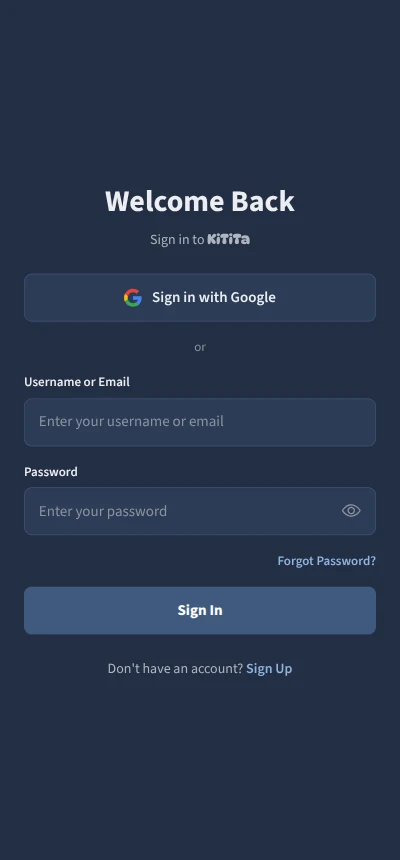
- Create an account with your email, or sign in with Google.
- Tap Create group and choose a type: Savings & Loans (members save and borrow from the pool) or Merry-go-round (everyone contributes and one member takes the pot each round).
- Set the group's rules: contribution amount, interest rate and loan limits.
- Invite members by link. Add members who aren't on the app yet as managed members, and they can link their own account later.

Step 2 · Your home screen
All your groups and money in one view
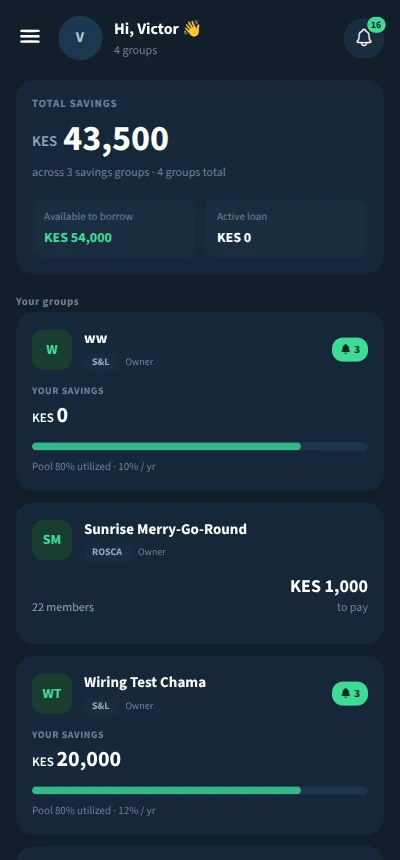
After you sign in, Home brings together everything across the groups you belong to.
- Total savings across all your savings groups.
- How much you can borrow right now, and any loan you still owe.
- A card for each group with your role, your savings, how much of the pool is lent out, and unread alerts.
- Recent activity: contributions, payouts and loans from every group.
Step 3 · Inside a group
The group dashboard
Each group opens to its own dashboard.
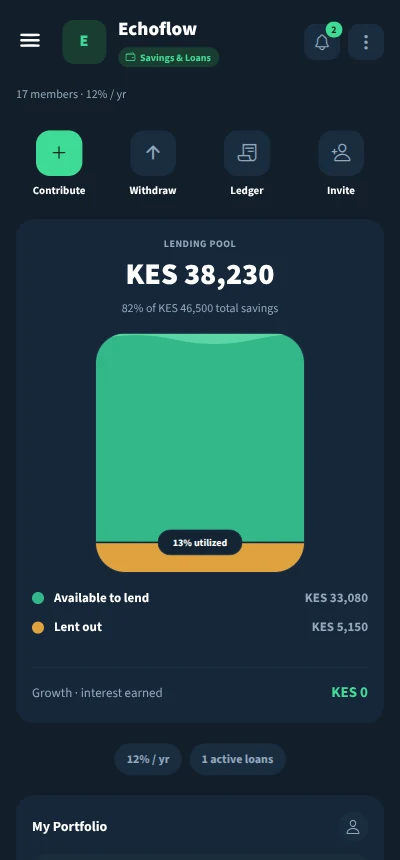
- Quick actions at the top: Contribute, Withdraw, Ledger, Invite.
- Lending pool: total savings, how much is available to lend, how much is lent out, and how much of the pool is in use.
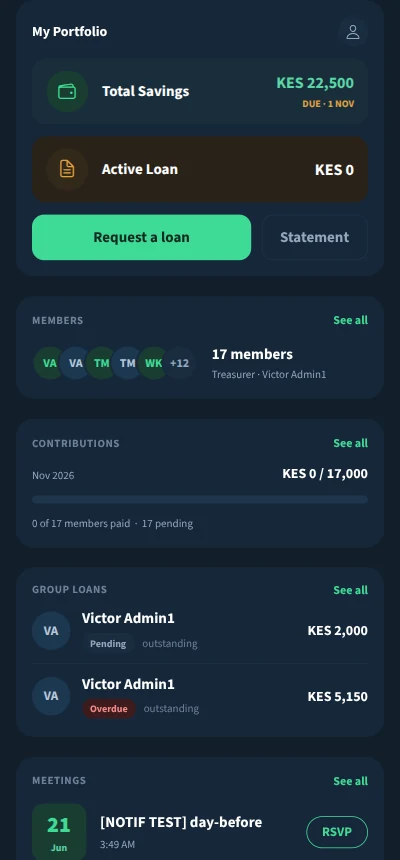
- My Portfolio: your savings, your active loan, Request a loan, and your personal statement.
- Members, this month's contributions, group loans, meetings and recent activity, each with See all.
Step 4 · Contributions
Saving every period
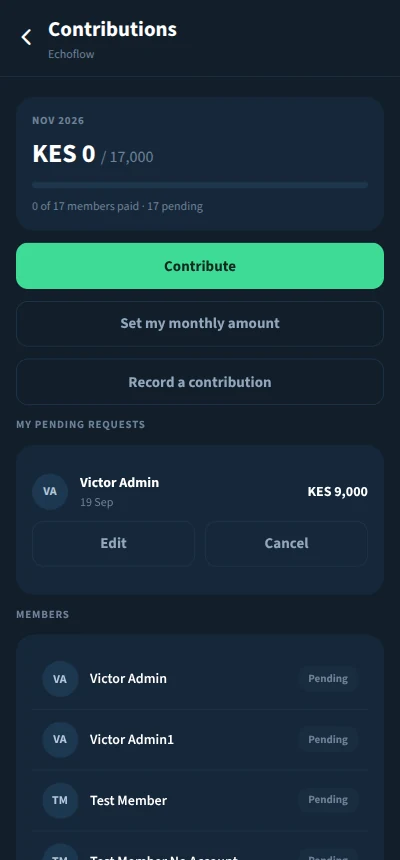
The Contributions screen shows this period's target and who has paid.
- Contribute: after you pay by M-Pesa, bank or cash, record the payment and choose which period it covers. An approver confirms it.
- Pending requests can be edited or cancelled until they're reviewed.
- Officers can record contributions for members, one at a time or in bulk, and choose the account that received the money.
- Set my monthly amount: commit to more than the group minimum.
- Automatic reminders, plus late penalties if the group sets them.
Step 5 · Loans
Borrowing from the pool
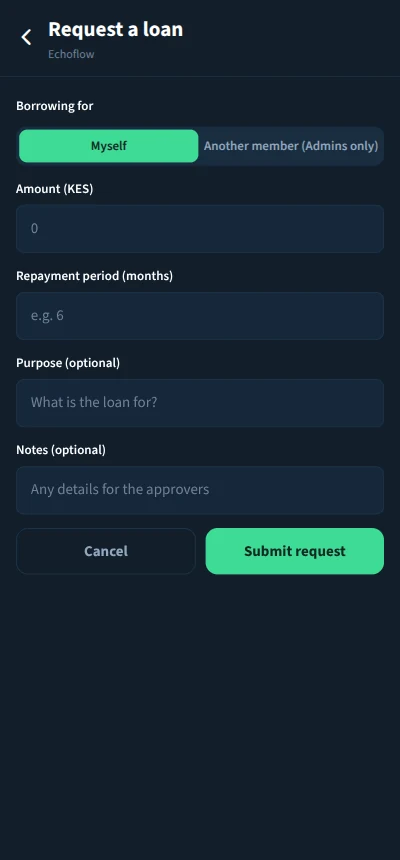
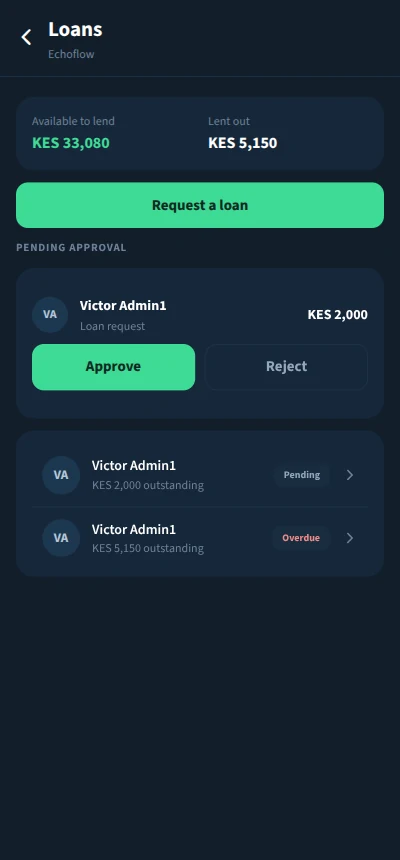
- Request: enter the amount, the repayment period and the purpose. Your limit, and how it's worked out from your savings and the group's lending cap, is shown on the same screen.
- Approve: members with loan-approval rights approve or reject the request. Borrowers can't approve their own loans.
- Disburse: an officer records the payout, and the borrower confirms they received it.
- Repay: a repayment schedule is created, with reminders and penalties for late payment. The loan closes automatically once it's fully repaid.
Step 6 · Ledger & members
Open books, clear roles
Ledger
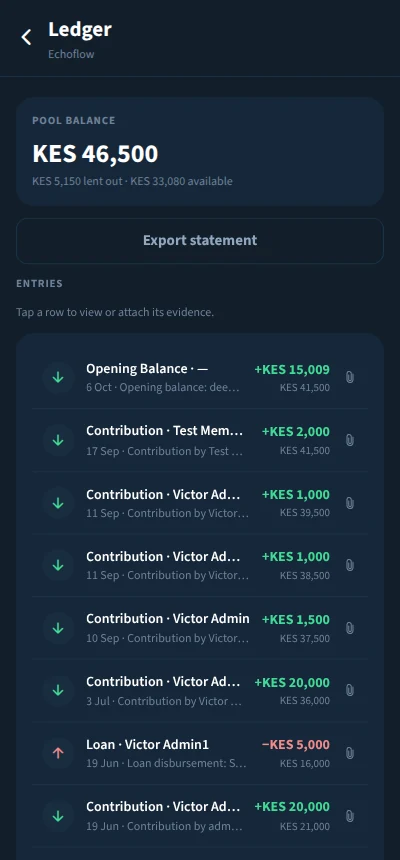
- Every contribution, loan, repayment and payout, with a running pool balance.
- Tap an entry to view or attach evidence. Export a statement for the group or for one member.
Members & roles
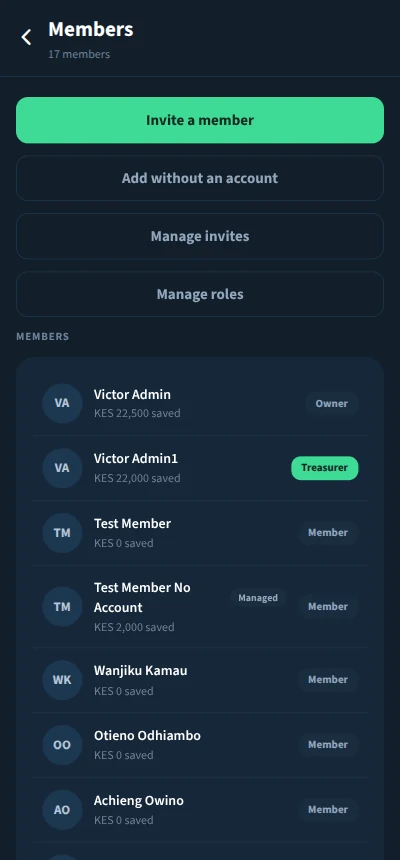
- Owner, Treasurer and Member, plus custom roles built from permissions: manage settings, roles and members, approve loans, record contributions, view reports.
- Invite members, add members without an account, and manage invites and roles.
- The group always keeps at least one full admin.
Step 7 · Merry-go-round
Rotating savings, recorded for you
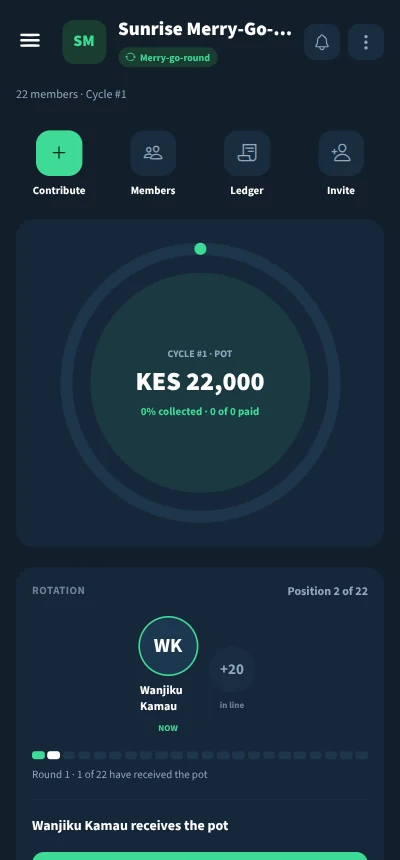
In a merry-go-round group, every member pays in each cycle and one member takes home the whole pot.
- An admin sets the rotation order and can reorder it. Members who have already been paid stay in place.
- An officer starts each cycle, then the ring shows how much of the pot has been collected.
- Members are reminded before each cycle, and late penalties apply if the group sets them.
- The payout goes to the ledger, and the full cycle history stays visible to everyone.
Merry-go-round groups don't take loans. That keeps the rotation simple.